
Choosing a tablet for a child involves more than comparing screen sizes or app stores. Parents also need to consider the child’s age, the kind of content available, privacy settings, durability, software updates and how the device will fit into family routines. This guide compares several child-focused tablets and general-purpose models, including Amazon Fire Kids devices, iPads and Android options.
Disclaimer: This post contains affiliate links. As an Amazon Associate, I earn from qualifying purchases at no extra cost to you.

What Parents Should Consider Before Buying a Child’s Tablet
A tablet does not automatically make screen time educational. The value depends on the quality of the app or activity, the child’s age and whether an adult helps the child connect what happens on screen with real-life experiences. Interactive drawing, reading and problem-solving activities may offer opportunities to practise skills, but they should not replace conversation, outdoor play, books, sleep or hands-on activities.
The American Academy of Pediatrics encourages families to make a media plan that reflects each child’s age and needs. Its guidance recommends choosing quality content, using parental controls, making time for offline activities and setting screen-free periods such as meals and the hour before bedtime. For younger children, shared use with an adult is particularly important. Read the AAP’s Family Media Plan guidance before setting household rules.
It is also worth asking whether a child needs a personal tablet at all. A shared family device can make it easier for an adult to choose apps, supervise use and keep the tablet in a common area. If you do buy a device for a child, check the manufacturer’s age warnings and the availability of parental settings in your country.
Amazon Fire Kids vs. Apple iPad vs. Android Tablets
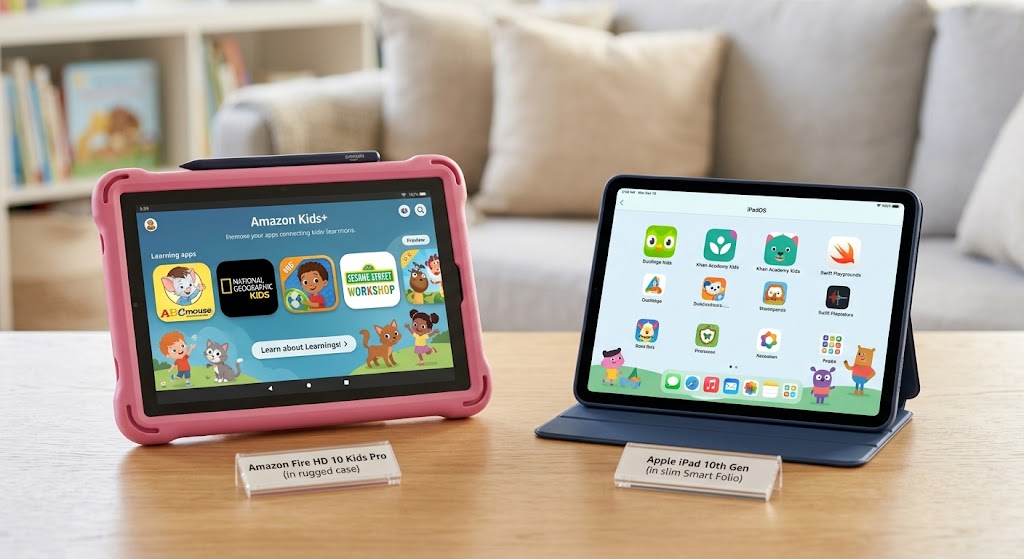
These options serve different needs. Fire Kids models are sold as child-focused packages, often with a protective case and access to Amazon’s child-content service. An iPad offers a broad app ecosystem and family controls through Apple’s Screen Time features. Android tablets vary by manufacturer; some include a dedicated children’s environment, while others rely on parental-control settings that parents must configure.
| Feature | Amazon Fire Kids | Apple iPad | Android tablet |
| Child setup | Child profiles and Amazon Kids features on supported models | Child account and Screen Time through Family Sharing | Depends on the brand, Android version and available family tools |
| Protective case | Included with some Kids bundles; check the exact package | Usually purchased separately | Varies by model and bundle |
| App selection | Amazon Appstore and supported Amazon Kids content | Apple App Store | Google Play on supported models |
| Parental settings | Child profiles, content controls and usage settings | Screen Time, purchase approvals and content restrictions | Manufacturer tools and/or Google Family Link, depending on setup |
| Best reason to consider it | A child-focused bundle with a case | A flexible family device with a wide app selection | More choice across brands, sizes and prices |
For a child-focused option, compare the current Amazon Fire Kids tablet listings. Check the generation, storage, included case, subscription terms and local warranty details before ordering.
Features Worth Checking Before You Buy
1. Parental Controls and Child Profiles
Look for controls that let you approve apps and downloads, restrict purchases, manage websites, set downtime and review usage. Check whether these features work on the exact model and software version you plan to buy. A parental-control dashboard is useful, but it does not replace an adult checking what a child is watching, playing or sharing.
Apple explains how parents can configure a child’s iPad using Family Sharing and Screen Time in its iPad child setup guide. Samsung also documents child profiles, allowed content, activity reports and screen-time schedules in Samsung Kids support.
2. Display, Comfort and Viewing Habits
A clear display and comfortable screen size can make reading or drawing easier, but a blue-light filter should not be treated as a guarantee against eye strain or vision problems. Encourage children to take breaks, use the tablet at a comfortable distance and avoid long, uninterrupted sessions. If a child reports headaches, blurred vision or eye discomfort, speak with an eye-care professional rather than relying on a display setting.
3. Storage, Battery and Software Support
Check how much storage remains after the operating system and pre-installed apps are accounted for. Downloaded books, games and videos can use space quickly, especially when a device is shared by several family members. Battery life also varies with screen brightness, Wi-Fi use, app activity and battery age, so treat manufacturer estimates as test-condition figures rather than a guarantee of everyday runtime.
Before buying an older or discounted tablet, check how long it is expected to receive security and software updates. A low purchase price may not be worthwhile if important apps no longer support the device or it cannot receive security fixes. Compare current storage options and model details in the tablet listings with 32GB storage, but confirm the exact product specifications on the seller’s page.

Seven Tablets and Tablet Types to Compare
The models below represent different approaches rather than a universal ranking. Product generations, included services and availability can change, and some models may be sold only in selected markets. Confirm the exact model number, age guidance, warranty and app compatibility before purchasing.
1. Amazon Fire HD 8 Kids – A Child-Focused Starter Option
The Fire HD 8 Kids range is worth comparing if you want a smaller tablet sold in a child-focused bundle. Depending on the package and market, the bundle may include a protective case and access to Amazon Kids content. Check the product generation and the current subscription terms; a content subscription may renew or have conditions after any included trial.
Amazon’s safety information says its Fire Kids tablets are not suitable for children under three and that children should be supervised during use. The same page explains that the two-year Worry-Free Guarantee applies to specified Kids models, not automatically to every Fire tablet or every country. Read the exact Fire HD 8 safety and warranty information for the model and sales region.
2. Apple iPad (A16) – A Flexible Family Tablet
The iPad (A16) is a current standard iPad option in Apple’s lineup. It may suit families who want one device for reading, drawing, school-related apps and general household use. It does not become a child-specific tablet automatically: parents need to create the appropriate child account, configure Screen Time, review app permissions and choose a suitable protective case.
For current specifications and model comparisons, use Apple’s official iPad comparison page. Availability and pricing differ by country and retailer.
3. Amazon Fire HD 10 Kids Pro – A Larger-Screen Kids Bundle
A Fire HD 10 Kids Pro package may be worth considering for an older child who benefits from a larger display and a more grown-up case design. Do not assume that every Kids Pro model has identical content access, browser settings or age recommendations. Check the exact model’s safety label and parental-control options before buying.
4. Apple iPad mini – A Compact iPad Option
The iPad mini is smaller and easier to carry than Apple’s larger tablets. It can be convenient for travel or reading, although the smaller screen may not suit every child or activity. Apple lists the current iPad mini and its specifications on the iPad comparison page; make sure a listing is for the current generation rather than an older used model.
Families comparing cases and accessories can browse iPad tablet and protective-case listings. Confirm the case matches the exact iPad generation and screen size.
5. Amazon Fire 7 Kids – Check Availability Before Considering an Older Model
The Fire 7 Kids name may appear in older reviews and retailer listings. Treat it as an older-generation option rather than assuming it is the newest budget choice. Before considering one, check whether the device is still supported, whether the apps your child needs are compatible and whether the seller provides a clear warranty and return policy. A newer supported model may be a better long-term purchase even if its initial price is higher.
6. Samsung Galaxy Tab A9+ – An Android Tablet to Set Up for Family Use
The Galaxy Tab A9+ is a general-purpose Android tablet that families can configure for supervised use. Samsung Kids provides a child-friendly environment with options such as profiles, allowed content and screen-time schedules on supported devices. Check regional availability and the software version, and set up the controls before giving the tablet to a child.
Samsung explains the Kids features available on its tablets in its Galaxy Tab A9+ support guide. You can also compare tablet cases and accessories, making sure the selected case fits the exact model.
7. LeapFrog LeapPad Academy – A Dedicated Learning-Device Alternative
The LeapPad Academy is designed around child-focused learning activities rather than the open app experience of a general-purpose tablet. It may appeal to families who prefer a more limited environment, but check the available content, language options, Wi-Fi requirements and compatibility before purchasing. Also confirm that the product and any associated downloads are supported in your region.
LeapFrog maintains a product support directory that includes LeapPad Academy. Review the support information for the exact model you are considering.

Healthy Ways to Include Tablets in Family Life
A well-chosen device still needs sensible family rules. Rather than relying only on a timer, consider what the child is doing, who is using the device with them and whether screen use is crowding out sleep, movement, conversation or other interests.
- Choose content before handing over the tablet: Preview apps and videos, check age ratings and disable features or recommendations that are not appropriate.
- Use the tablet together: Ask your child what they are making, reading or solving. Shared use gives you a chance to discuss the content and connect it with real-life experiences.
- Keep meals and bedtime screen-free: Agree on family routines that protect conversation and sleep. The AAP’s family media guidance suggests screen-free periods, including the hour before bedtime.
- Make room for offline activities: Balance digital activities with outdoor play, drawing, building, reading and time with family and friends.
- Review settings regularly: Recheck app access, purchases, privacy permissions and time limits as your child grows and the device receives software updates.
The AAP explains why shared media experiences can be useful in its article on co-viewing and co-playing with children. The aim is not to make every digital activity a lesson, but to keep technology as one part of a varied family routine.

Final Thoughts: Choose the Device That Fits Your Family
The right tablet is not necessarily the most expensive or the one with the longest list of apps. A Fire Kids bundle may appeal to parents who want a child-focused package, while an iPad or Android tablet may suit a family looking for a shared device with broader uses. Dedicated learning devices such as LeapPad Academy offer a different, more limited approach.
Before making a decision, compare the exact model, software support, parental settings, warranty, replacement options and total cost in your country. Most importantly, decide how the tablet will fit alongside reading, conversation, movement and play. For more hands-on options, see our guide to educational toys for 1-year-olds.
Questions and Answers
Is a kids tablet better than a regular iPad?
A kids tablet bundle may include a protective case and child-focused content. A regular iPad offers a wider app ecosystem, but parents need to configure child accounts, Screen Time settings and suitable protection. The better choice depends on the child’s needs and the level of supervision available.
What should parents check before buying a tablet?
Check the manufacturer’s age guidance, parental controls, app availability, privacy settings, storage, software-update support, durability, warranty and return policy. Confirm that the exact model and its services are available in your country.
Do educational apps replace hands-on play?
No. Apps can provide selected reading, drawing or problem-solving activities, but they should complement rather than replace conversation, physical activity, outdoor exploration, books and hands-on play.
How can I create healthier screen habits?
Choose suitable content, use the device together when possible, set family rules, keep meals and bedtime screen-free, and make sure offline activities remain part of the child’s day. Review the rules as your child grows.
Related reading: Protective Cases for Kids Tablets | Musical Toys for 9-Month-Olds
Good article
thank you